Cette entrée n'est pas traduite. Vous lisez le texte anglais. Aller à l'original anglais
What it does
Phaseline is a map editor in a browser tab. Four parts are around the map. The asset bar on the left holds every asset. The INSPECTOR on the right shows the properties of the object that you selected. The command bar at the top finds any asset or command (Ctrl+K). The status bar at the bottom shows the zoom and the map scale.
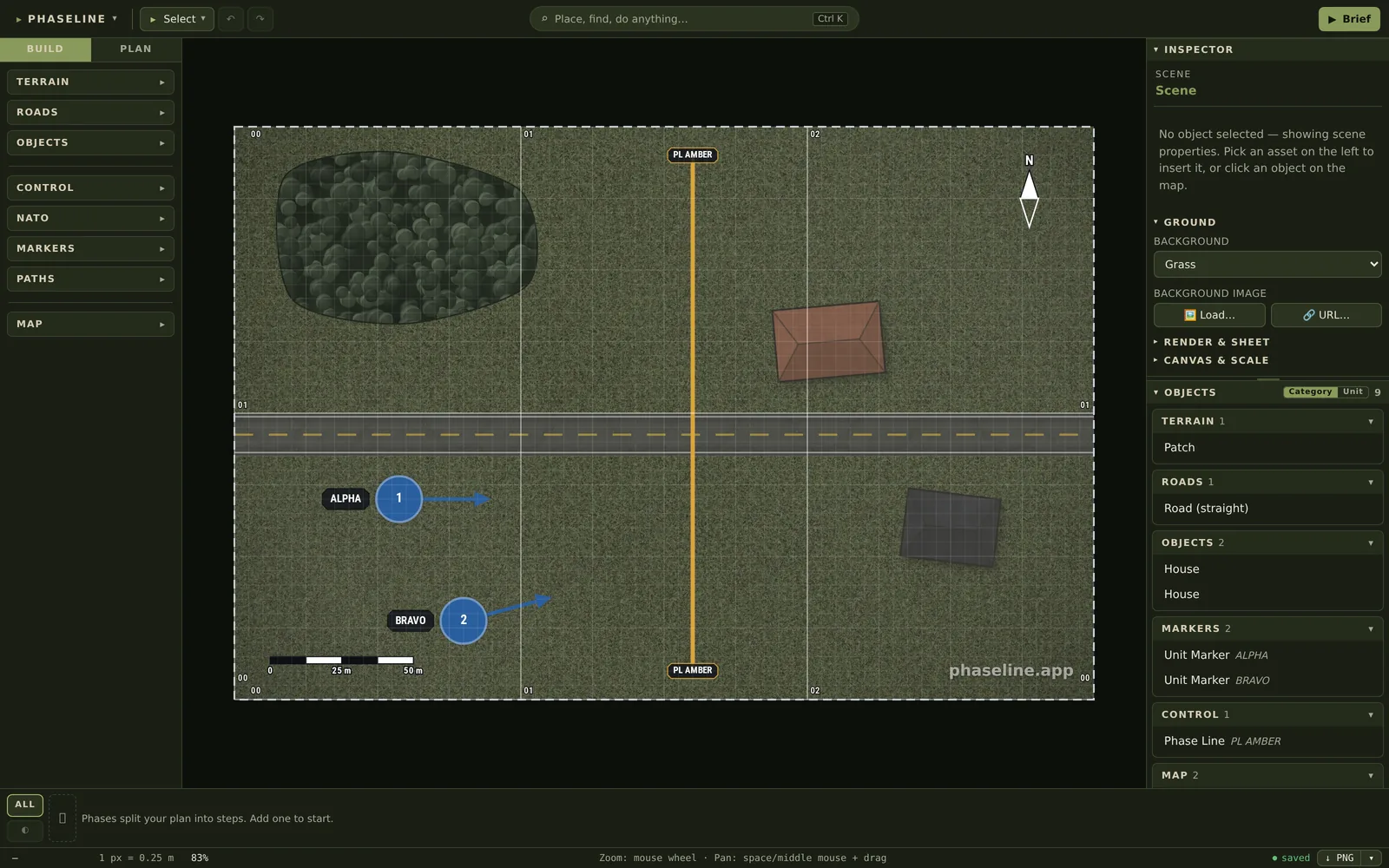
Why it is there
A briefing map usually starts as a screenshot of a game map. A person then draws arrows on it in a paint program. That map is correct for one minute. When the plan changes, the person makes the map again from the start. Phaseline keeps each object as an object. You move a phase line, you export the sheet again, and the remaining part of the map stays as it was.
How to use it
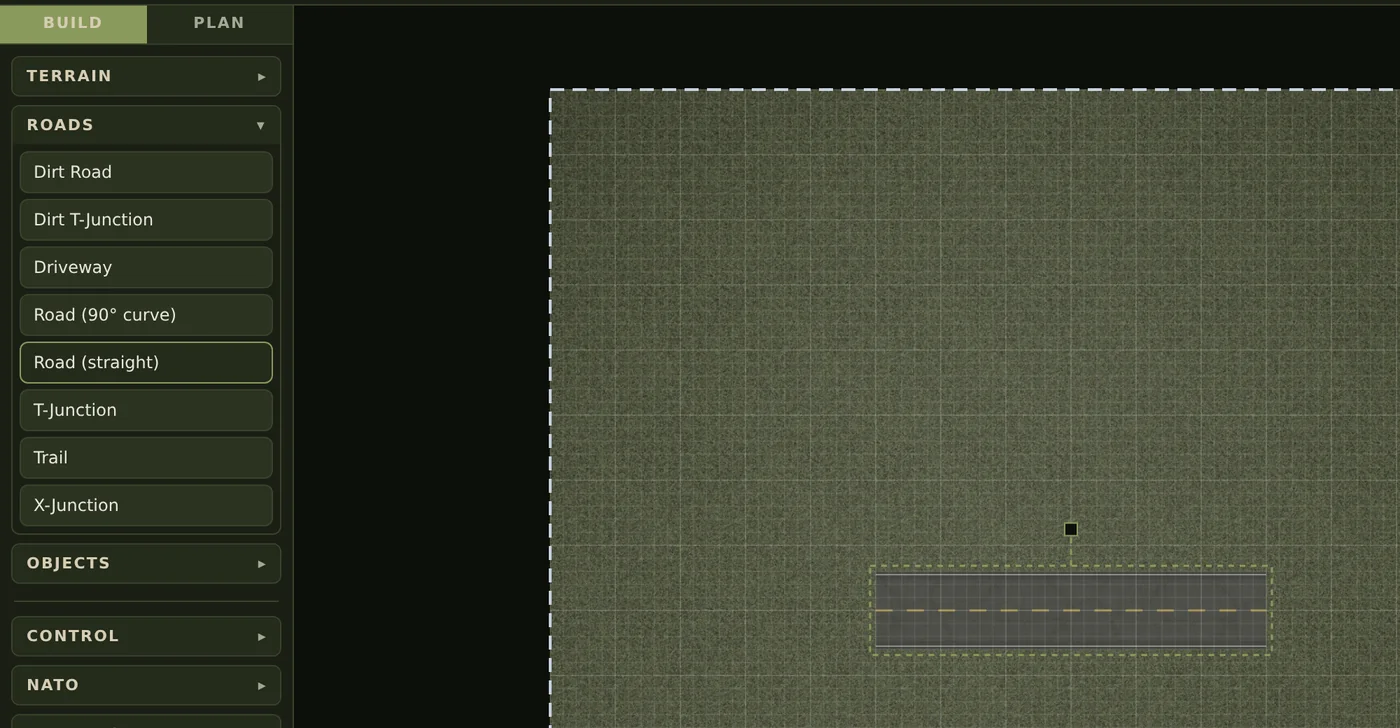
- Click a block in the asset bar on the left, for example ROADS. The block opens and shows its assets.
- Click an asset, for example Road (straight). Phaseline puts it in the middle of the map and selects it. To put it at a different point, drag the asset onto the map.
- Drag the object to move it. Use the corner handles to change its size, and the handle above it to turn it.
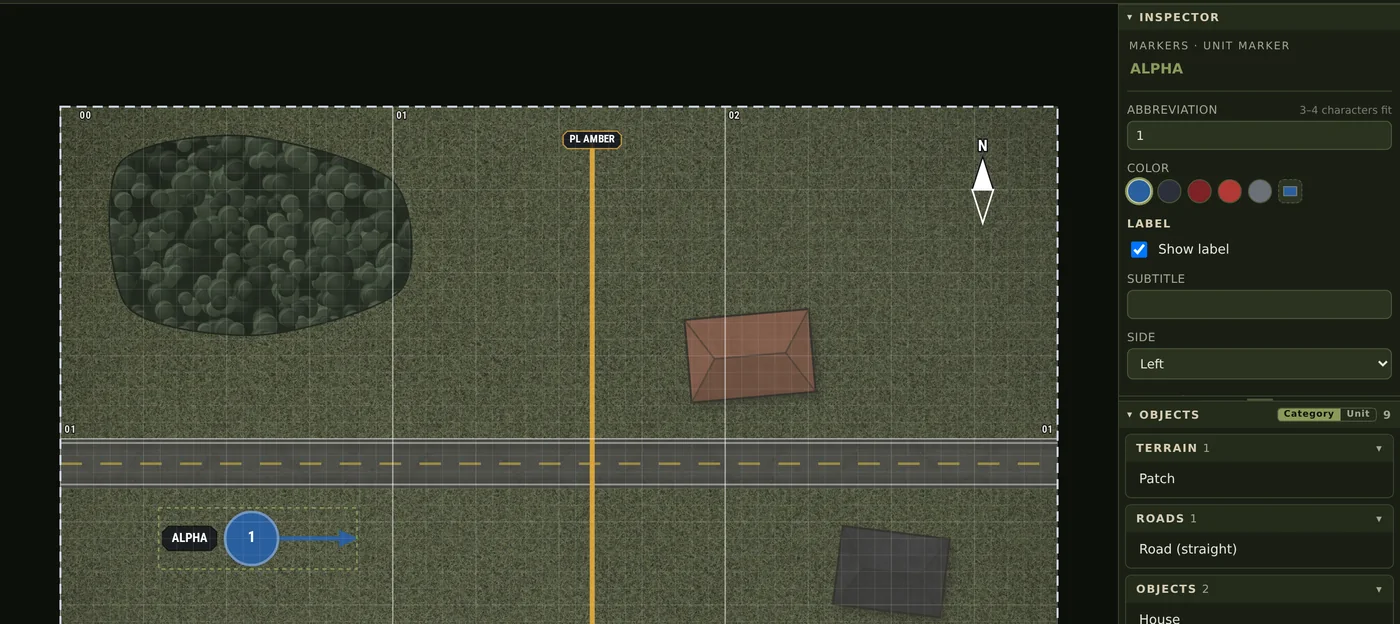
- Change the properties of the object in the INSPECTOR on the right. A unit marker gets its abbreviation, its color and its label there.
- Turn the mouse wheel to zoom. Hold the space bar or the middle mouse button and drag to move the map.
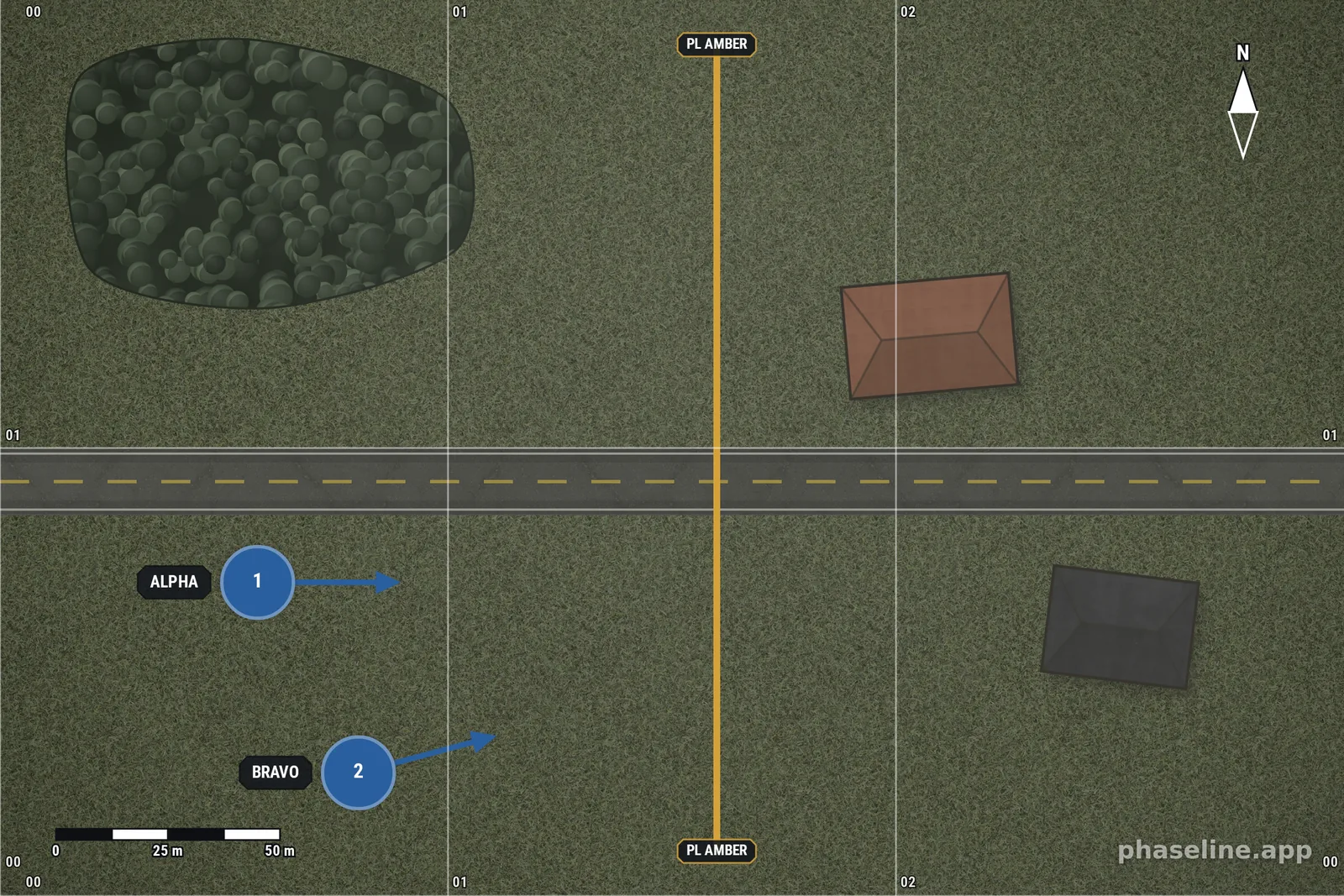
- Push Ctrl+E to write a PNG of the area in the dashed rectangle.
- Push Ctrl+S to keep the scene as a file, and Ctrl+O to open that file again.
On the map
The example is a first map: a road, a wood, two squads and one phase line. The map is 300 m wide, and the scale bar and the grid numbers come from that one value. Open it, move PL AMBER to a different place, and export the sheet again.
Limits
- The editor needs a wide screen and a mouse. There is no layout for a phone.
- Phaseline keeps your scene in your browser, not on a server. A different computer does not have it. Ctrl+S makes the file that you can move and send.
- If you delete the data of your browser, the scene goes with it. The file from Ctrl+S is the copy that stays.
- Undo (Ctrl+Z) works while the tab is open. It does not go back to the work of yesterday.
- The map has no cooperation between two persons. Two persons who plan together look at one screen, or they send the file.
Related
- Control measures explained in pictures — what each line on the map means.
- Mastering the sand table — why a map on a table changes a briefing.
- All the entries of this handbook — one page for each function of the editor.